Porting NASA cFS to Steam Deck
Setting up Steam Deck interface for BLINK
Recap
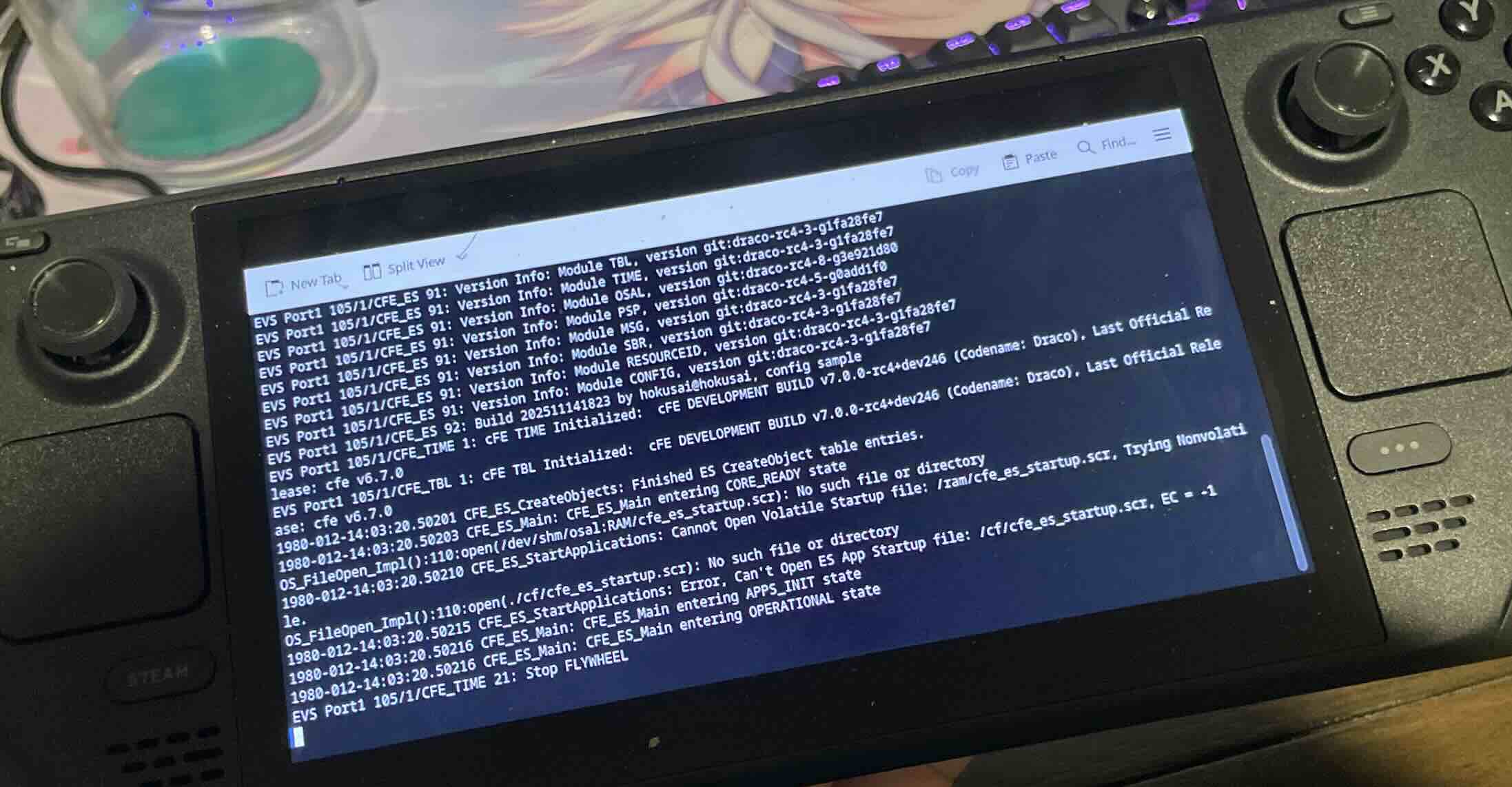
My Steam Deck seems like it would be the perfect interface for controlling the lego RC car. Therefore now I need to figure out how I even plan to write software to this device and actually control it.
Setting Up Steam Dev Tools
Thankfully, Valve is such an awesome company. They have a ton of resources for executing code on the steam deck and most of their firmware is actually pretty nicely documented and opensource. They do use a custom arch linux build for the system but for the most part, it has everything I would possibly need for executing code on the system. This website had all the information that I needed.
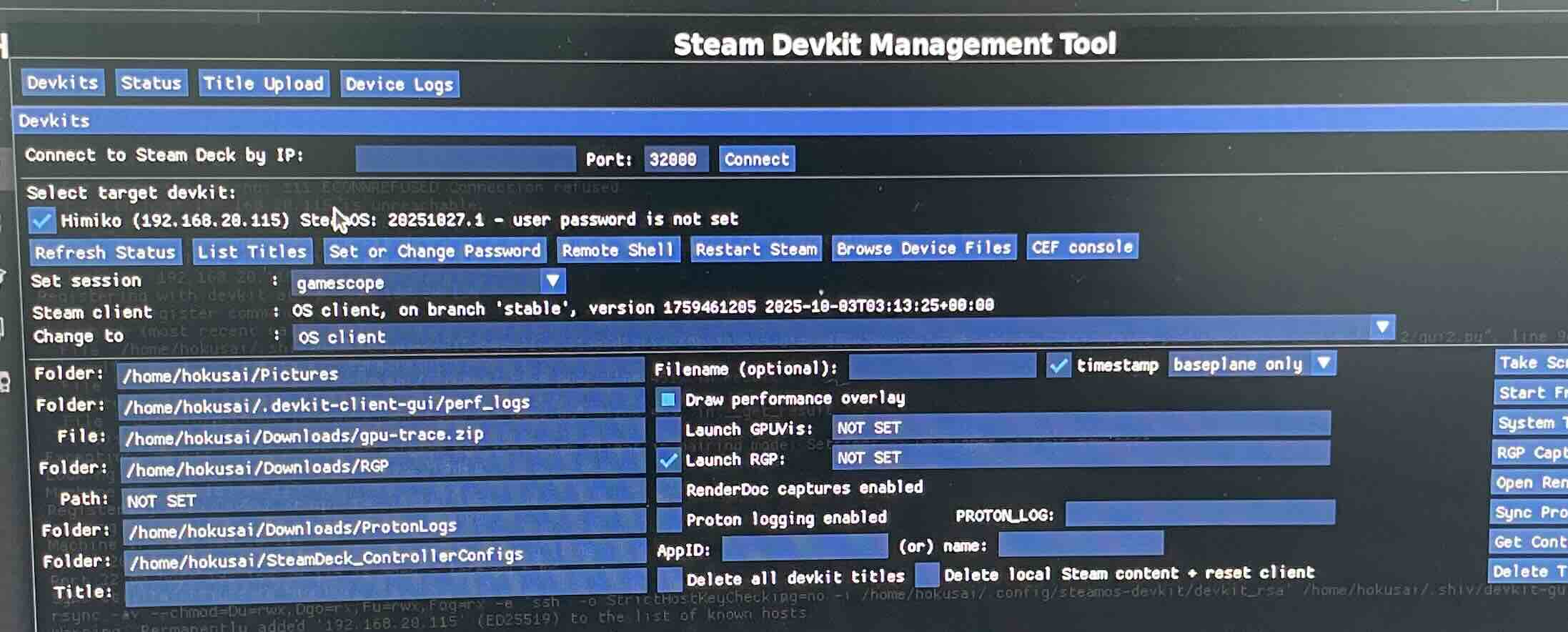 Figure 1: Steam Deck programming interface
This tool was extremely easy to use and very intuitive. It was very nice since it practically just worked!!
Executing Code
Now that I had a way to get code running on the steam deck from my desktop, it was time to write something that will actually run and be useful. I decided to start with Unity since I found a bunch of videos that explored and explained the workflow from a unity project to deployable games on the steam deck in youtube. Youtube is really just the best. I pretty much followed the tutorial here in this video and started putting together a very basic simple UI interface in Unity to make sure I can use the controllers to control stuff.
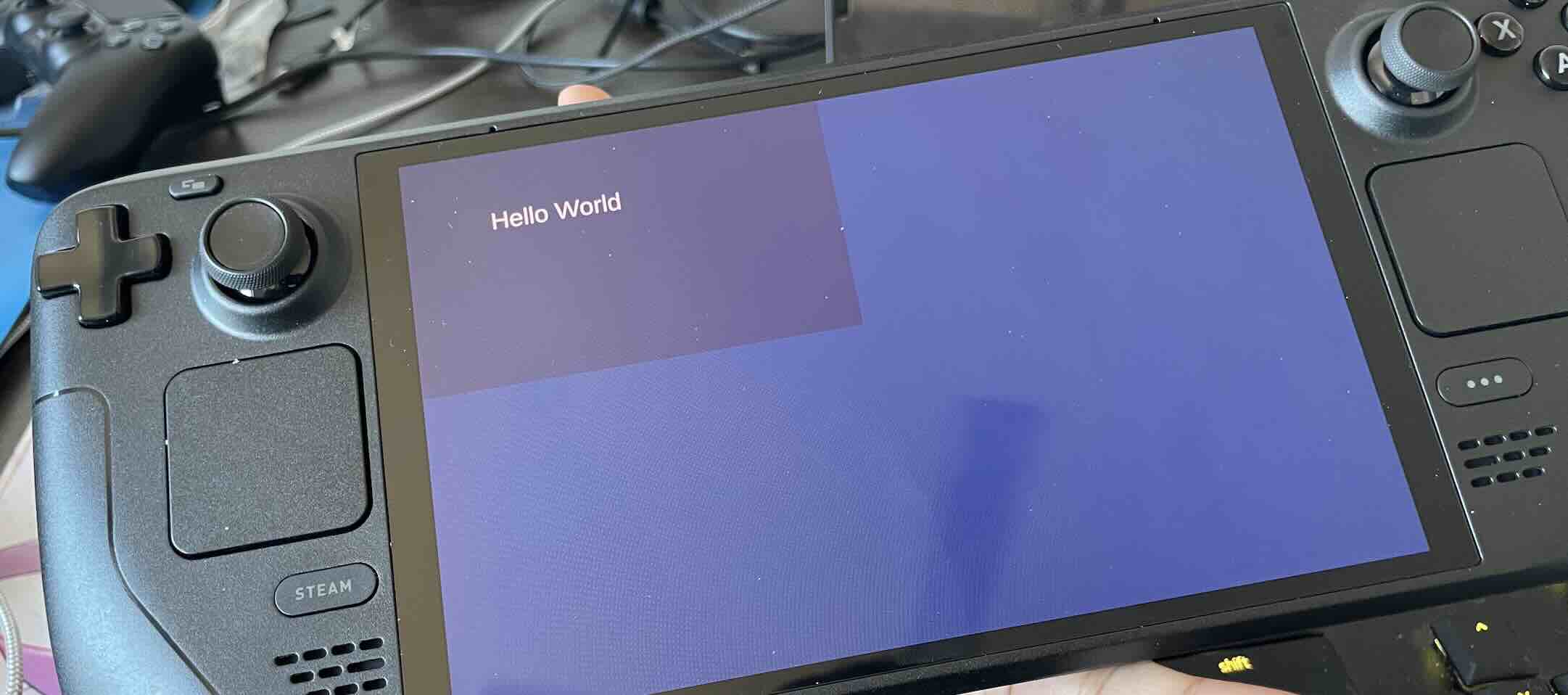 Figure 2: Simple hello world interface on Steam Deck
Big Issues
Things were going great, until I realized that there actually are no good solutions for bluetooth interfaces in unity. Whats worse is that there are actually some solutions but they are all paid, super cringe. Anyways, I decided to dump unity and figured I can just program in C and just do things the old fashioned way. I also was getting super fursterated with C Sharp. Such a digusting language IMO.
Regardless, I decided to shift to C which meant and if I am using C I might as aswell just use cFS since I have already written software to control robots in cFS that I can reuse for this project.
Porting NASA cFS to Steam Deck
The port was actually super easy. Since the steam deck is an x86 machine that is running linux, I did not have to create any cross compilers or anything like that so I was able to just build my default vanilla cFS. The decided to not use my SMP port since I did not really care about pinning tasks for this project so I got to keep it very simple. After the build was complete, I used the steam deck dev tools to put the code on the steam deck and just run it.
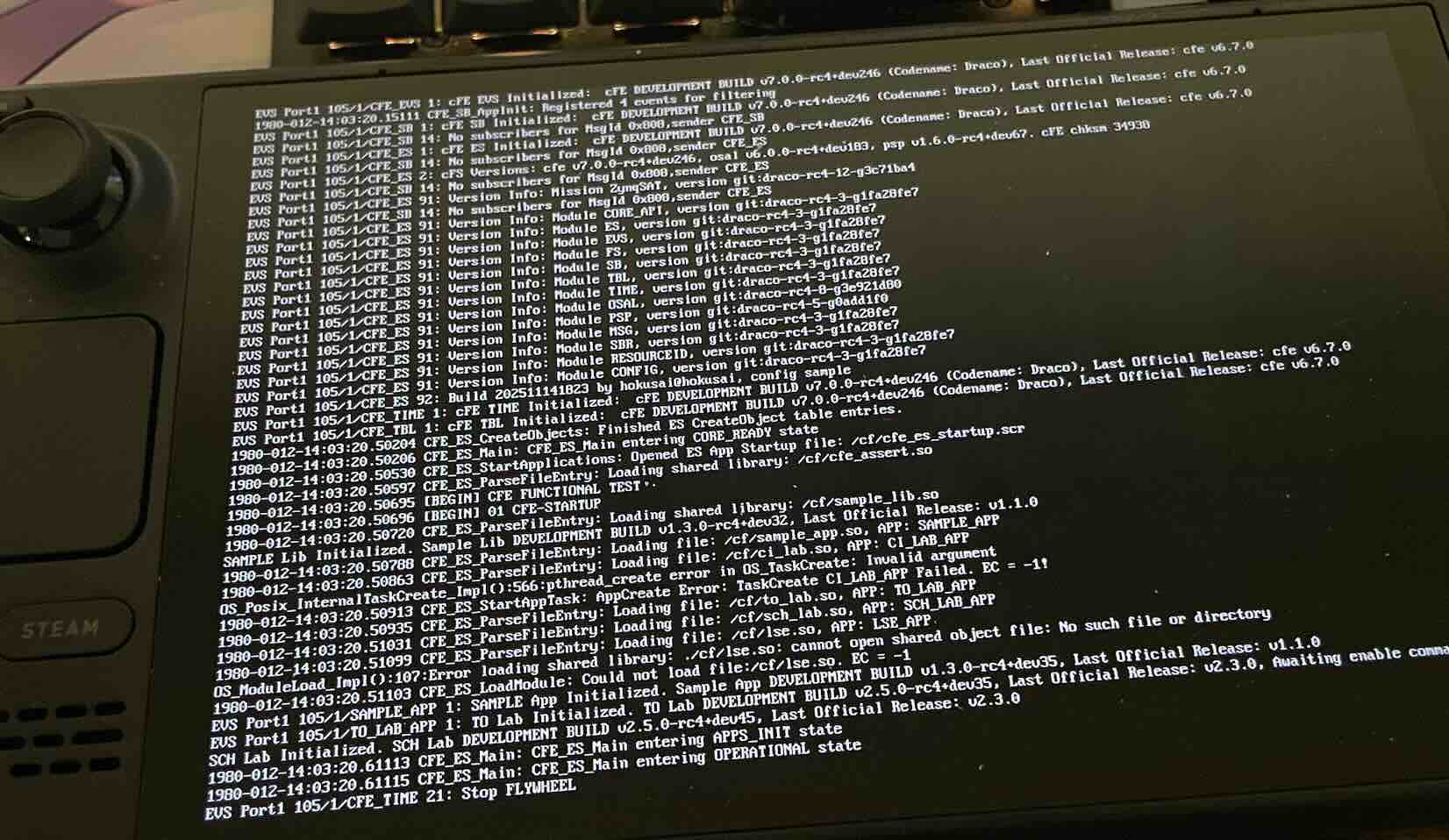 Figure 3: Initial Run of cFS on Steam Deck
Initially, it was running in the linux enviornment purely but I wanted to have the steam overlay on it and have it show up in my steam deck as a game so I did not need to use a keyboard or anything external to start the system up. After some tricker with steam and my starter script that launched cFS I was able to run “sudo ./core_cpu1” from the steam big game UI. I also was able to shutdown the system by simply exiting the “game” which made the UI experience of starting up cFS super intuitive and smooth.
Figure 4: Final Product
Next Steps
Now that I had my foothold on the steam deck solidified, it was time to start writing the code to actually interface with the Lego RC Car!!